
 mjq424
Hi
Some of those detections are generic detections of ComboFix (some Antivirus find risks in it)
Using Windows Explorer by right-clicking the Start button and left clicking Explore navigate to and find the following files: if found, delete the following (some may not be present after previous steps):
F:\Programs\Nero 8 Ultra Edition 8.2.8.0+Keymaker\Nero-8.2.8.0_eng_trial.exe
F:\Programs\SpySweeper5.5-FULL\SpySweeper 5.5.exe <-- This is a compromised (hacked) version of this software! If you want to use it please download it from the official website!
Let's clear out the programs we've been using to clean up your computer, they are not suitable for general malware removal and could cause damage if used inappropriately.
UNINSTALL COMBOFIX
You can also delete any logs we have produced, and empty your Recycle bin.
Download OTMoveIt2 by OldTimer to your Desktop.
Now that you are clean, please follow these simple steps in order to keep your computer clean and secure:
Some of those detections are generic detections of ComboFix (some Antivirus find risks in it)
Using Windows Explorer by right-clicking the Start button and left clicking Explore navigate to and find the following files: if found, delete the following (some may not be present after previous steps):
F:\Programs\Nero 8 Ultra Edition 8.2.8.0+Keymaker\Nero-8.2.8.0_eng_trial.exe
F:\Programs\SpySweeper5.5-FULL\SpySweeper 5.5.exe <-- This is a compromised (hacked) version of this software! If you want to use it please download it from the official website!
Let's clear out the programs we've been using to clean up your computer, they are not suitable for general malware removal and could cause damage if used inappropriately.
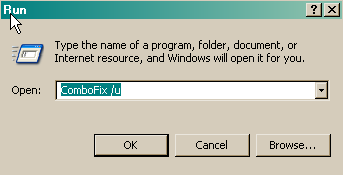
UNINSTALL COMBOFIX
- Click START then RUN
- Now type Combofix /u in the runbox and click OK.
- Note the space between the X and the U, it needs to be there.
You can also delete any logs we have produced, and empty your Recycle bin.
Download OTMoveIt2 by OldTimer to your Desktop.
- Double click OTMoveIt2.exe to launch it.
- Click on the CleanUp! button.
- OTMoveIt will download a list from the Internet, if your firewall or other defensive programs alerts you, allow it access.
- You will be prompted to allow the clean up procedure, click Yes
- When finished exit out of OTMoveIt2
- Now delete OTMoveIt2.exe (if still present)
Now that you are clean, please follow these simple steps in order to keep your computer clean and secure:
- Disable and Enable System Restore. - If you are using Windows ME/XP/Vista then you should disable and re-enable system restore to make sure there are no infected files found in a restore point.
Reset System Restore.
Now you should disable System restore to purge any infected files and then re-enable it,
On the Desktop, right-click My Computer.
Click Properties.
Click the System Restore tab.
Check Turn off System Restore.
Click Apply, and then click OK.
Restart your computer
Turn ON System Restore
On the Desktop, right-click My Computer.
Click Properties.
Click the System Restore tab.
Un-Check Turn off System Restore.
Click Apply, and then click OK.
- Make your Internet Explorer more secure - This can be done by following these simple instructions:
- From within Internet Explorer click on the Tools menu and then click on Options.
- Click once on the Security tab
- Click once on the Internet icon so it becomes highlighted.
- Click once on the Custom Level button.
- Change the Download signed ActiveX controls to Prompt
- Change the Download unsigned ActiveX controls to Disable
- Change the Initialise and script ActiveX controls not marked as safe to Disable
- Change the Installation of desktop items to Prompt
- Change the Launching programs and files in an IFRAME to Prompt
- Change the Navigate sub-frames across different domains to Prompt
- When all these settings have been made, click on the OK button.
- If it prompts you as to whether or not you want to save the settings, press the Yes button.
- Next press the Apply button and then the OK to exit the Internet Properties page.
- Update your Anti Virus Software - It is imperitive that you update your Anti virus software at least once a week (Even more if you wish). If you do not update your anti virus software then it will not be able to catch any of the new variants that may come out.
- Visit Microsoft's Windows Update Site Frequently - It is important that you visit http://www.windowsupdate.com regularly. This will ensure your computer has always the latest security updates available installed on your computer. If there are new updates to install, install them immediately, reboot your computer, and revisit the site until there are no more critical updates.
- Install WinPatrol - Download and install Winpatrol by BillP Studios.
This program can monitor what software start with Windows. You can delay startup for some programs and stop malicious programs from starting up. It can also view some hidden files.
Download it from here
- Install SpywareBlaster - SpywareBlaster will added a large list of programs and sites into your Internet Explorer settings that will protect you from running and downloading known malicious programs. A article on anti-malware products with links for this program and others can be found here:
Computer Safety on line - Anti-Malware
- Install ThreatFire - Download and install ThreatFire. This program defends against malware by detecting certain malicious behaviours. It is configured "out-of-the-box" and acts as a complement to your Antivirus software. It can be downloaded here:
PC Tools ThreatFire
- Update all these programs regularly - Make sure you update all the programs I have listed regularly. Without regular updates you WILL NOT be protected when new malicious programs are released.


