
 jmw3
jmw3
Combofix
Download ComboFix from one of these locations:
Link 1
Link 2
Link 3
**IMPORTANT !!! Save ComboFix.exe to your Desktop**
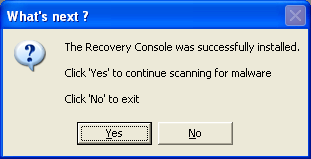
Once the Microsoft Windows Recovery Console is installed using ComboFix, you should see the following message:
ComboFix SHOULD NOT be used unless requested by a forum helper
Download ComboFix from one of these locations:
Link 1
Link 2
Link 3
**IMPORTANT !!! Save ComboFix.exe to your Desktop**
- Disable your AntiVirus and AntiSpyware applications, usually via a right click on the System Tray icon. They may otherwise interfere with our tools
A guide to do this can be found here
The ones that need to be closed/disabled are:
List the programs that need to be closed/ Disabled here - Double click on ComboFix.exe & follow the prompts
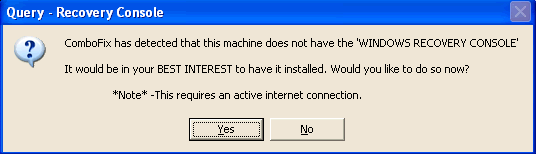
- As part of it's process, ComboFix will check to see if the Microsoft Windows Recovery Console is installed. With malware infections being as they are today, it's strongly recommended to have this pre-installed on your machine before doing any malware removal. It will allow you to boot up into a special recovery/repair mode that will allow us to more easily help you should your computer have a problem after an attempted removal of malware
- Follow the prompts to allow ComboFix to download and install the Microsoft Windows Recovery Console, and when prompted, agree to the End-User License Agreement to install the Microsoft Windows Recovery Console
Once the Microsoft Windows Recovery Console is installed using ComboFix, you should see the following message:
- Click on Yes, to continue scanning for malware.
- When finished, it shall produce a log for you. Please include the contents of C:\ComboFix.txt in your next reply along with a new HijackThis log.
ComboFix SHOULD NOT be used unless requested by a forum helper
