This is a read-only archive of malwareremoval.com. No new posts or registrations. Privacy Page
Malware Removal Forums

Google Search Results taking me to a different site.

9 min read

This thread's last reply is from March 21, 2009, 3:31 AM UTC. Software, malware, and removal-tool advice below may be out of date — treat specific steps and download links with caution.

Hi gocowboys77,

Please run another Combofix scan and post back the log.
Please find attached.
thanks.

Attachments:

Hi gocowboys77,

Step 1

Please disable Teatimer as it will interfere with the fixes.

  1. Right click the Spybot Icon in the system tray near the clock (looks like a blue/white calendar with a padlock symbol).
  2. Click once on Resident Protection, then right click the Spybot icon again and make sure Resident Protection is now Unchecked. The Spybot icon in the System tray should now be now colorless.
  3. Go to Start > All Programs > Spybot - Search & Destroy > Spybot Search & Destroy.
  4. Click on Mode > Advanced Mode. When it prompts you, click Yes.
  5. On the left hand side, click on Tools.
  6. Check (tick) this box if it is not yet ticked: Resident.
  7. You will notice that Resident is now added under Tools. Click on Resident.
  8. Uncheck (untick) this box: Resident "TeaTimer" (Protection of over-all system settings) active.
  9. Exit Spybot Search & Destroy.
  10. Restart your computer for the changes to take effect.


Please also disable McAfee Antivirus temporarily to prevent it from interfering with the fixes.

Step 2

Please open Notepad and copy and paste the following in the Code box into Notepad.

File::
c:\windows\system32\stu2.exe

DirLook::
C:\GRAPHPAP
C:\Temp

FCopy::
c:\windows\ServicePackFiles\i386\userinit.exe | c:\windows\system32\userinit.exe


Click on File > Save As....

In the File Name field, copy and paste in CFScript.txt. Do not change the file name.

Click Save.

Referring to the picture below, drag CFScript into Combofix.
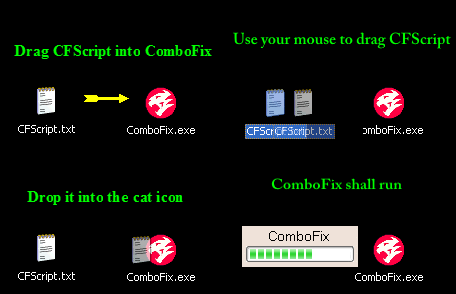


Combofix will start running. When done, a log will be produced. Please post this log in your next reply.

Do not mouse click on Combofix while it is running. That may cause it to stall.
Hi,
The log is attached.
Thanks.

Attachments:

Hi gocowboys77,

The Combofix log looks good. Any issues so far?
Hi,
Well it still is redirecting my Google searches.
Thanks.
  1. Download getsysteminfo.zip and save it to your desktop.
  2. Right click on getsysteminfo.zip and select Extract All....
  3. Click Next on seeing the Welcome to the Compressed (zipped) Folders Extraction Wizard.
  4. Click Next again.
  5. Check (tick) the Show extracted files box and click Finish.
  6. Double click on GetSystemInfo.exe to run it. It will prompt you to save a file. Save it to a convenient location. After saving, it will start running.
  7. When done, GetSystemInfo will close. Please attach the log file you've saved earlier in your next reply.
Hi
The log file is attached.
Thanks.

Attachments:

Hi gocowboys77,

The log will take me some time to go through. Please be patient. I will try to be back as soon as possible.

Thank you for your patience.
No problem,
Thanks for your time.
Hi gocowboys77,

A question. How do you connect to the Internet? Is it via a router?
Yes its a wireless router.
Do you know your ISP settings? We would need to reset your router to see if it's the cause of re-directions.
I do not know my ISP settings. But if its the router, should it not affect all the computers accessing the web via that router?
Logically, it would, since the router is handling the network's traffic.