This thread's last reply is from December 17, 2011, 4:35 PM UTC. Software, malware, and removal-tool
advice below may be out of date — treat specific steps and download links with caution.
imrjeffrey
========== OTL ==========
Registry key HKEY_LOCAL_MACHINE\Software\Microsoft\Windows\CurrentVersion\Explorer\Browser Helper Objects\{6EBF7485-159F-4bff-A14F-B9E3AAC4465B}\ deleted successfully.
Registry key HKEY_LOCAL_MACHINE\SOFTWARE\Classes\CLSID\{6EBF7485-159F-4bff-A14F-B9E3AAC4465B}\ deleted successfully.
Unable to delete ADS C:\Windows\System32\autochk.exe:BAK .
OTL by OldTimer - Version 3.2.31.0 log created on 11272011_160448
Dear Gary, We hope this is what you were looking for. If not, please let us know. Thank you, Jeff & Kay Annette
imrjeffrey
========= OTL ==========
Registry key HKEY_LOCAL_MACHINE\Software\Microsoft\Windows\CurrentVersion\Explorer\Browser Helper Objects\{6EBF7485-159F-4bff-A14F-B9E3AAC4465B}\ deleted successfully.
Registry key HKEY_LOCAL_MACHINE\SOFTWARE\Classes\CLSID\{6EBF7485-159F-4bff-A14F-B9E3AAC4465B}\ deleted successfully.
Unable to delete ADS C:\Windows\System32\autochk.exe:BAK .
OTL by OldTimer - Version 3.2.31.0 log created on 11272011_160448
imrjeffrey
All processes killed
========== PROCESSES ==========
========== OTL ==========
Unable to delete ADS C:\Windows\System32\autochk.exe:BAK .
========== COMMANDS ==========
[EMPTYTEMP]
User: All Users
User: Default
->Temp folder emptied: 0 bytes
->Temporary Internet Files folder emptied: 0 bytes
User: Default User
->Temp folder emptied: 0 bytes
->Temporary Internet Files folder emptied: 0 bytes
User: Jeffrey
->Temp folder emptied: 82555 bytes
->Temporary Internet Files folder emptied: 4316772 bytes
->Java cache emptied: 0 bytes
->Apple Safari cache emptied: 0 bytes
User: Public
%systemdrive% .tmp files removed: 0 bytes
%systemroot% .tmp files removed: 0 bytes
%systemroot%\System32 .tmp files removed: 0 bytes
%systemroot%\System32\drivers .tmp files removed: 0 bytes
Windows Temp folder emptied: 0 bytes
%systemroot%\system32\config\systemprofile\Local Settings\Temporary Internet Files folder emptied: 0 bytes
RecycleBin emptied: 0 bytes
Total Files Cleaned = 4.00 mb
HOSTS file reset successfully
OTL by OldTimer - Version 3.2.31.0 log created on 11292011_205056
Files\Folders moved on Reboot...
Registry entries deleted on Reboot...
Dear Gary, Sorry for the double-posting, I didn't realize that the forum had started a 2nd page so I got confused. Ran the scan as you asked and here is the log file. Waiting to hear what the next step is. Thank you very much, Jeff & Kay Annette
imrjeffrey
Here it is.
========== PROCESSES ==========
All processes killed
========== FILES ==========
Unable to delete ADS C:\Windows\System32\autochk.exe:BAK .
========== COMMANDS ==========
OTL by OldTimer - Version 3.2.31.0 log created on 11302011_075722
Files\Folders moved on Reboot...
Registry entries deleted on Reboot...
imrjeffrey
Dear Gary,
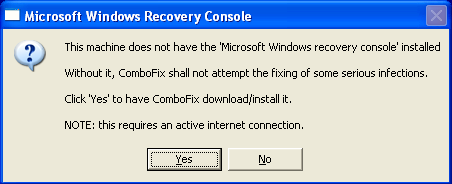
I ran ComboFix twice and when it got to a certain point, it would just stall. I let the computer sit there for 1/2 hour and it wouldn't do anything. It just left this message: System file is infected !! Attempting to restore C:\Windows\System32\autochkexe
It created no log. Thank you very much. I'm waiting for your next instructions. Jeff & Kay Annette
imrjeffrey
Here it is. Thank you very much. It's 11:30 PM here, so we're toddling off to bed.
OTL logfile created on: 11/30/2011 11:29:31 PM - Run 2
OTL by OldTimer - Version 3.2.31.0 Folder = C:\Users\Jeffrey\Documents\My Downloads
Windows Vista Home Premium Edition Service Pack 2 (Version = 6.0.6002) - Type = NTWorkstation
Internet Explorer (Version = 9.0.8112.16421)
Locale: 00000409 | Country: United States | Language: ENU | Date Format: M/d/yyyy
2.99 Gb Total Physical Memory | 1.60 Gb Available Physical Memory | 53.43% Memory free
6.18 Gb Paging File | 4.56 Gb Available in Paging File | 73.73% Paging File free
Paging file location(s): ?:\pagefile.sys [binary data]
%SystemDrive% = C: | %SystemRoot% = C:\Windows | %ProgramFiles% = C:\Program Files
Drive C: | 288.01 Gb Total Space | 196.90 Gb Free Space | 68.36% Space Free | Partition Type: NTFS
Drive D: | 10.00 Gb Total Space | 4.91 Gb Free Space | 49.12% Space Free | Partition Type: NTFS
Computer Name: JEFFREY-LAPTOP | User Name: Jeffrey | Logged in as Administrator.
Boot Mode: Normal | Scan Mode: Current user
Company Name Whitelist: Off | Skip Microsoft Files: Off | No Company Name Whitelist: Off | File Age = 30 Days
========== Custom Scans ==========
< C:\autochk.exe /md5 /s >
[2009/04/10 22:27:20 | 000,643,072 | ---- | M] () MD5=FF171B926945B9B3E6F03723B69A2EB4 -- C:\Windows\System32\autochk.exe
[2008/01/20 18:24:45 | 000,642,560 | ---- | M] () MD5=6A79DD53CFC4C7B1DBFF790FB1649ED9 -- C:\Windows\winsxs\x86_microsoft-windows-autochk_31bf3856ad364e35_6.0.6001.18000_none_e1f3ed49c1c122ef\autochk.exe
[2009/04/10 22:27:20 | 000,643,072 | ---- | M] () MD5=FF171B926945B9B3E6F03723B69A2EB4 -- C:\Windows\winsxs\x86_microsoft-windows-autochk_31bf3856ad364e35_6.0.6002.18005_none_e3df6655bee2ee3b\autochk.exe
========== Alternate Data Streams ==========
@Alternate Data Stream - 22528 bytes -> C:\Windows\winsxs\x86_microsoft-windows-autochk_31bf3856ad364e35_6.0.6002.18005_none_e3df6655bee2ee3b\autochk.exe:BAK
@Alternate Data Stream - 22528 bytes -> C:\Windows\System32\autochk.exe:BAK
< End of report >
imrjeffrey
Dear Gary,
This has been a hair-pulling experience. We cannot do what you ask--we went into Virus Total and hit the browse button and could not put in the individual files. We found the files in two different places but when we tried to enter it, it would give us the entire OTL file. We also tried to type it in and also to copy and paste and it wouldn't allow us to do it. We found one under Moved Files: C:\_OTL\MovedFiles\113011_232564.log. And the other place we found it was: C:\Users\Jeffrey\Documents\My Downloads\OTL.Txt. We were able to successfully unhide hidden files. We did try Jotti with basically the same results as Virus Total. Please advise. Thanks, Jeff & Kay Annette
imrjeffrey
SystemLook 30.07.11 by jpshortstuff
Log created at 14:44 on 03/12/2011 by Jeffrey
Administrator - Elevation successful
========== filefind ==========
Searching for "autochk.exe"
C:\Windows\System32\autochk.exe --a---- 643072 bytes [15:43 12/09/2009] [06:27 11/04/2009] FF171B926945B9B3E6F03723B69A2EB4
C:\Windows\winsxs\x86_microsoft-windows-autochk_31bf3856ad364e35_6.0.6001.18000_none_e1f3ed49c1c122ef\autochk.exe --a---- 642560 bytes [02:24 21/01/2008] [02:24 21/01/2008] 6A79DD53CFC4C7B1DBFF790FB1649ED9
C:\Windows\winsxs\x86_microsoft-windows-autochk_31bf3856ad364e35_6.0.6002.18005_none_e3df6655bee2ee3b\autochk.exe --a---- 643072 bytes [15:43 12/09/2009] [06:27 11/04/2009] FF171B926945B9B3E6F03723B69A2EB4
-= EOF =-