This is a read-only archive of malwareremoval.com. No new posts or registrations. Privacy Page
Malware Removal Forums

Hijacked Computer

72 min read

This thread's last reply is from December 17, 2011, 4:35 PM UTC. Software, malware, and removal-tool advice below may be out of date — treat specific steps and download links with caution.

OK, 2 programs have now found files in the same locations, so it's reasonable to assume that they are in fact there, so the question now arises "why could you not find them" ?

Try the following ....
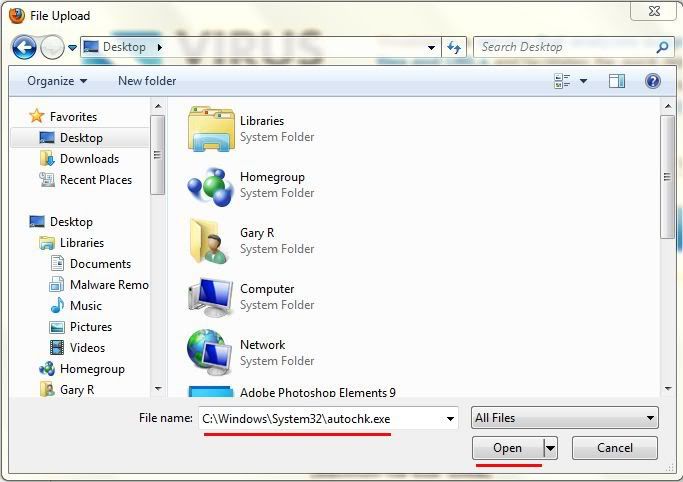
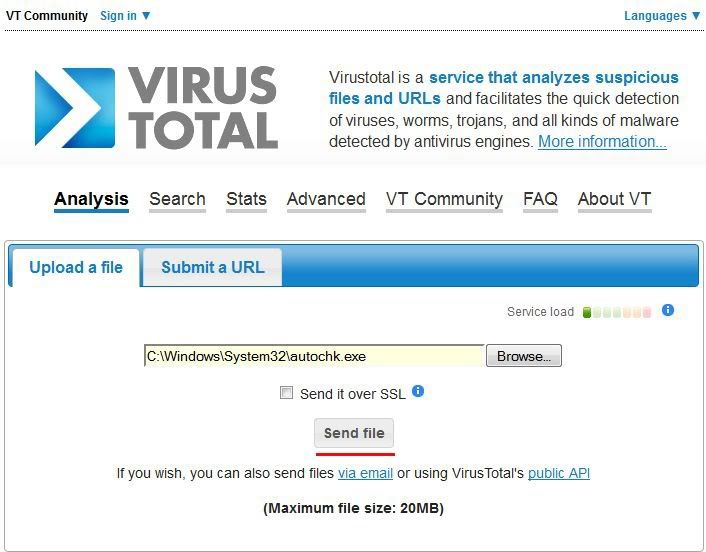
  • Go to VirusTotal
  • Click on the Browse button.
  • A window similar to the one below should open (if you've used the Browser before it may open to another folder, if so don't worry, just continue using the procedure as described below) ....


  • In the File name box at the bottom, copy/paste the first filepath from the list I gave you.
  • Click Open
  • You should now get a window similar to the one below ....


  • Click on Send File


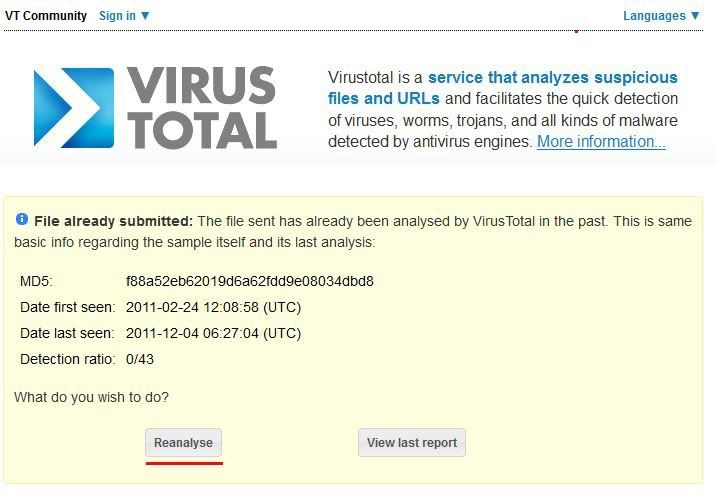
  • If VirusTotal tells you the file has already been scanned, click on the Reanalyze button


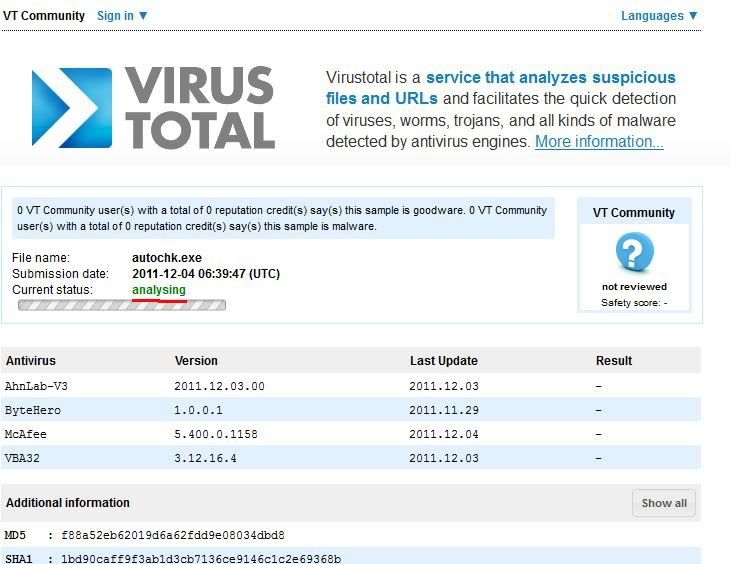
  • VirusTotal will now scan the file with a number of different scanners (you may be put in a queue first, if you are be patient)
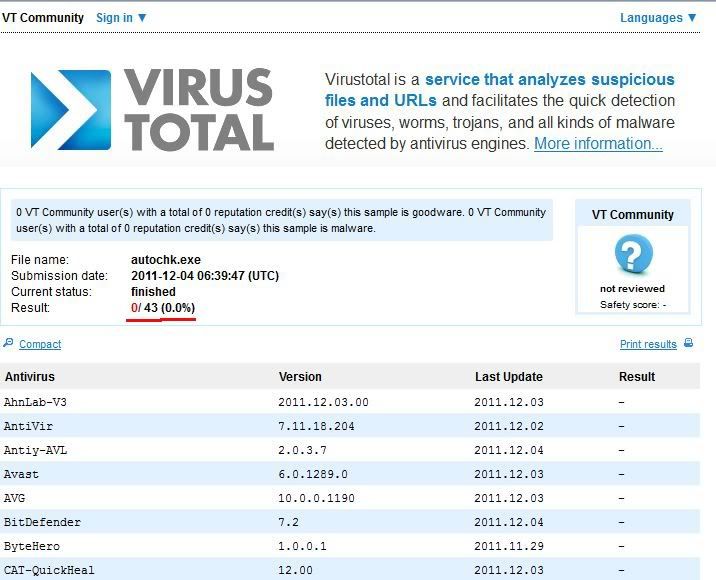
  • When finished you should see a screen similar to the one below ....


  • If the result shows anything other than 0/43, then note down any infections found.


Repeat for all the 3 files I gave you ....

C:\Windows\System32\autochk.exe
C:\Windows\winsxs\x86_microsoft-windows-autochk_31bf3856ad364e35_6.0.6001.18000_none_e1f3ed49c1c122ef\autochk.exe
C:\Windows\winsxs\x86_microsoft-windows-autochk_31bf3856ad364e35_6.0.6002.18005_none_e3df6655bee2ee3b\autochk.exe


Any problems let me know.
All processes killed
========== PROCESSES ==========
========== OTL ==========
Unable to delete ADS C:\Windows\System32\autochk.exe:BAK .
========== COMMANDS ==========


[EMPTYTEMP]

User: All Users

User: Default
->Temp folder emptied: 0 bytes
->Temporary Internet Files folder emptied: 0 bytes

User: Default User
->Temp folder emptied: 0 bytes
->Temporary Internet Files folder emptied: 0 bytes

User: Jeffrey
->Temp folder emptied: 375184 bytes
->Temporary Internet Files folder emptied: 252280691 bytes
->Java cache emptied: 0 bytes
->Apple Safari cache emptied: 0 bytes

User: Public

%systemdrive% .tmp files removed: 0 bytes
%systemroot% .tmp files removed: 0 bytes
%systemroot%\System32 .tmp files removed: 0 bytes
%systemroot%\System32\drivers .tmp files removed: 0 bytes
Windows Temp folder emptied: 23096 bytes
%systemroot%\system32\config\systemprofile\Local Settings\Temporary Internet Files folder emptied: 0 bytes
RecycleBin emptied: 570 bytes

Total Files Cleaned = 241.00 mb

C:\Windows\System32\drivers\etc\Hosts moved successfully.
HOSTS file reset successfully

OTL by OldTimer - Version 3.2.31.0 log created on 12032011_232747

Files\Folders moved on Reboot...

Registry entries deleted on Reboot...
I don't recall asking for an OTL fix log, any reason why you've posted it ?
Dear Gary,
Sorry about posting the OTL file, I was working late last night and got confused. We ran the first scan for the autochk.exe and here are the results:
AhnLab-V3 2011.12.04.00 2011.12.04 and then in red: Win-Trojan/Rootkit.642560
Avast 6.0.1289.0 2011.12.04 and again in red: Win32:Malware-gen
AVG 10.0.0.1190 2011.12.04 then in red: unknown virus Win32/DH.00000000 {00008001-00000000-00000000}
GData 22 2011.12.04 in red: Win32:Malware-gen
nProtect 2011-12-04.01 2011.12.04 in red: Trojan/W32.Agent.643072.T
Sophos 4.71.0 2011.12.04 in red: Sus/Dropper-A
VBA32 3.12.16.4 2011.12.03 in red: Trojan.DownLoader.17875

Thanks so much for all your help. We'll be sending the next scan shortly.
Dear Gary,
We loaded the second line that you wanted us to run--we cut and pasted it into the box as instructed and ran it. Then we got a box saying that it was running and in about 8 seconds it kicked us off sending us to the Bing search engine. We've tried it twice with the same results. We're about to try the third line and post the results. This is where it put us.

Related Searches for http://www.virustotal.com/file-upload/file_upload?1
Dear Gary,
We ran the third line three times and we kept getting the same result as the second but instead of going to the Bing Search Engine, it said Cannot Load this Page, Time has Expired. This time it took five minutes to run it each time. Thank you very much.
I'm going to take a risk here, and replace your infected autochk.exe with one of the other copies. Because we've been unable to scan the other 2 it's possible that we might be replacing one infected file with another, but we'll scan your machine afterwards to check.

In any case you're no worse off if we do this, and if the unchecked file is clean then you'll be a whole lot better off.

So .....

  • Double click OTL.exe to launch the programme.
  • Copy/Paste the contents of the code box below into the Custom Scans/Fixes box.

:Files
C:\Windows\System32\autochk.exe|C:\Windows\winsxs\x86_microsoft-windows-autochk_31bf3856ad364e35_6.0.6002.18005_none_e3df6655bee2ee3b\autochk.exe /replace

:Commands
[Reboot]

  • Click the Run Fix button.
  • OTL will now process the instructions.
  • OTL will re-boot your computer. A log will be produced upon re-boot.
  • Copy/Paste the log in your next reply please.


Next

If OTL successfully replaces the file, I want you to run another online scan with E-Set.

If the OTL log does not say that it successfully replaced the file, don't run the E-Set scan, just post me the OTL log.

Note: You can use either Internet Explorer or Mozilla FireFox for this scan. You will however need to disable your current installed Anti-Virus, how to do so can be read here.
  • Please go HERE then click on:

Note: If using Mozilla Firefox you will need to download esetsmartinstaller_enu.exe when prompted then double click on it to install.
All of the below instructions are compatible with either Internet Explorer or Mozilla FireFox.

  • Select the option YES, I accept the Terms of Use then click on:
  • When prompted allow the Add-On/Active X to install.
  • Make sure that the option Remove found threats is NOT checked, and the option Scan archives is checked.
  • Now click on Advanced Settings and select the following:

    • Scan for potentially unwanted applications
    • Scan for potentially unsafe applications
    • Enable Anti-Stealth Technology


  • Now click on:
  • The virus signature database... will begin to download. Be patient this make take some time depending on the speed of your Internet Connection.
  • When completed the Online Scan will begin automatically.
  • Do not touch either the Mouse or keyboard during the scan otherwise it may stall.
  • When completed make sure you first copy the logfile located at C:\Program Files\ESET\EsetOnlineScanner\log.txt
  • Copy and paste that log in your next reply please.
  • Now click on: (Selecting Uninstall application on close if you so wish)

It looks like it did not work.

========== FILES ==========
Unable to replace file: C:\Windows\System32\autochk.exe with C:\Windows\winsxs\x86_microsoft-windows-autochk_31bf3856ad364e35_6.0.6002.18005_none_e3df6655bee2ee3b\autochk.exe without a reboot.
========== COMMANDS ==========

OTL by OldTimer - Version 3.2.31.0 log created on 12052011_212151

Files\Folders moved on Reboot...

Registry entries deleted on Reboot...
Did you include the .....

:Commands
[reboot]


.... command in your script, and did the computer reboot when the script was run ?

If you did not, and the computer did not reboot, then re-boot your computer manually, then run the E-Set scan I asked for in my last post.

If you did, then we need to try something else.

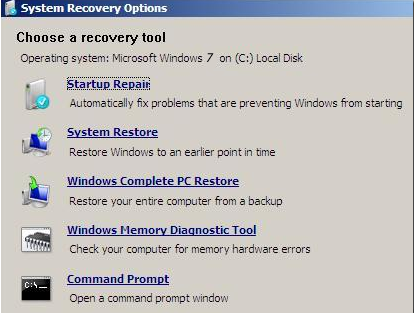
  • Restart your computer and as it reboots, press F8 repeatedly until the Advanced Options Menu appears.
  • Select Repair your computer.
  • Select Language and click Next
  • Enter password (if necessary) and click OK, you should now see the screen below ...


  • Take note of what drive Recovery Environment sees the Operating System on. RE sometimes sees drive allocations differently to how they are in Normal Mode, so it's important that I know so I can post appropriate instructions. It can be found at the top of the System Recovery Options window.


(the images are for Windows 7, but they're practically identical to what you'll see in Vista)

If you don't have the repair your computer option in your Advanced Options Menu, do you still have your Vista installation disk ?
Dear Gary,
When we ran OTL we cut and pasted the whole command as instructed and my computer rebooted almost instantly. We have the System Recovery Options just like the example above except that mine says: Operating system: Windows Vista on (C:) OS. We have not run the System Recovery Options as we're awaiting your instructions on this. Thanks so much.
Lovely, we're ready to go then.

First (with your computer booted up as normal)

  • Click Start then type Notepad into the Search programs and files box then hit Enter.
  • This will open an empty Notepad file ........ you must use Notepad, no other word editor will do
  • Copy/Paste the contents of the box below into Notepad.

@echo off

ren C:\Windows\System32\autochk.exe autochk.exe.vir
copy C:\Windows\winsxs\x86_microsoft-windows-autochk_31bf3856ad364e35_6.0.6002.18005_none_e3df6655bee2ee3b\autochk.exe C:\Windows\System32

  • Click Format and ensure Wordwrap is unchecked.
  • Save as Replacefile.bat to your root folder C:\ ......... it must be in this location
  • Save as file type All Files or it won't work.


Next

We need to reboot into Recovery console.

  • Restart your computer and as it reboots, press F8 repeatedly until the Advanced Options Menu appears.
  • Select Repair your computer.
  • Select Language and click Next
  • Enter password (if necessary) and click OK, you should now see the screen below ...


  • Select Command Prompt
    • A Command Window will open with the cursor flashing next to X:\Windows\System32>
    • Type C: and hit Enter
    • The cursor should now be flashing beside C:\>
    • Type Replacefile.bat into the Command Window
    • You should get a 1 file copied reply in the Command Window.
    • Type Exit into the Command Window then hit Enter to re-boot your computer into Normal Mode.


If all has gone successfully then please run a scan with E-Set online scanner ....

Note: You can use either Internet Explorer or Mozilla FireFox for this scan. You will however need to disable your current installed Anti-Virus, how to do so can be read here.
  • Please go HERE then click on:

Note: If using Mozilla Firefox you will need to download esetsmartinstaller_enu.exe when prompted then double click on it to install.
All of the below instructions are compatible with either Internet Explorer or Mozilla FireFox.

  • Select the option YES, I accept the Terms of Use then click on:
  • When prompted allow the Add-On/Active X to install.
  • Make sure that the option Remove found threats is NOT checked, and the option Scan archives is checked.
  • Now click on Advanced Settings and select the following:

    • Scan for potentially unwanted applications
    • Scan for potentially unsafe applications
    • Enable Anti-Stealth Technology


  • Now click on:
  • The virus signature database... will begin to download. Be patient this make take some time depending on the speed of your Internet Connection.
  • When completed the Online Scan will begin automatically.
  • Do not touch either the Mouse or keyboard during the scan otherwise it may stall.
  • When completed make sure you first copy the logfile located at C:\Program Files\ESET\EsetOnlineScanner\log.txt
  • Copy and paste that log in your next reply please.
  • Now click on: (Selecting Uninstall application on close if you so wish)


Any problems following any of the instructions above, please let me know.
Dear Gary,
We did as you instructed and when we got Replacefile.bat into the command window it just sat there until we hit enter. You did not indicate this in your post, so we hope that we did the right thing. After hitting enter the message we got was: Replacefile.bat is not recognized as an internal or external command, operable program or batch file. Due to the nature of the message we got we assumed that it did not go well and did not run the ESET scan. Do you want us to run the scan? Waiting for your next instructions. Thank you very much. Jeff & Kay Annette
Sorry for missing out the Enter instruction. :oops:

The message you got from your computer tells me that your computer cannot find the Replacefile.bat file, so one of two things could be wrong ....

1. You did not save Replacefile.bat to the C:\ directory.

  • Go to C:\ and ensure that there is a file Replacefile.bat present.


2. The computer does not name your C:\ drive as C when booted into the Recovery Environment. If your computer has a recovery partition installed, the C drive is often seen as the D drive when in Recovery Environment.

  • Please check how Recovery Environment names your main drive .....


If the Replacefile.bat is not in your C:\ directory, please move it there and try running the batch again in Recovery Environment.

If the drive allocation in RE is not C:\ please let me know.
Dear Gary,
We walked through all the steps again exactly as you said--the only difference we can see is that under System Recovery Options it says: Operating system: Windows Vista on (C:) OS rather than Local Disk as in your illustration. We saved replacefile.bat into Notepad just as you said. Every step of the way we made sure that it said C drive. The message we get is C:\>replacefile.bat
'replacefile.bat' is not recognized as an internal or external command, operable program or batch file. We could not find the replacefile.bat in C drive. We even used the search and it would tell us that it was there but not where it was. What am I missing? Thanks so much.
Let's see if SystemLook can find your bat file .....

  • Double-click SystemLook.exe to run it.
  • Copy the content of the following codebox into the main textfield:

:filefind
Replacefile.bat
Replace*.*

  • Click the Look button to start the scan.
  • When finished, a notepad window will open with the results of the scan. Please post this log in your next reply.
Note: The log can also be found on your Desktop entitled SystemLook.txt